Windows File Security Guide

How to Encrypt a Folder on Windows Securely

Folder security on Windows can mean several different things: hiding data from casual view, restricting changes on a shared PC, or encrypting files so the contents stay unreadable without the correct password. This guide explains those approaches using the security methods and tools already covered on this page.

AES-256 encryptionWindows 10 & 11Cloud-ready workflowsPortable secure containers

What “Folder Protection” Actually Needs to Do

Before choosing a tool, it helps to separate three goals that are often treated as if they were identical. Encryption is designed to make file contents unreadable without the correct key or password. Access control is intended to control whether a user can read, edit, or delete a file. Folder hiding only removes a folder from ordinary view and should not be confused with encryption.

The right choice therefore depends on what you are protecting against. A shared home PC may only need write or delete protection. Confidential documents carried on a USB drive need stronger protection. Files synchronized to Dropbox, Google Drive, or OneDrive benefit from being encrypted locally before they leave the computer.

Three Practical Ways to Protect Windows Folders

The existing page covers three distinct approaches. Each can be useful, but they solve different problems and require different levels of effort.

Approach 01

Dedicated Folder Encryption

Commercial folder-encryption software focuses on convenience: protected lockers, a master password, AES-256 encryption, cloud integration, and cross-device access. It is the most direct option when you want a security workflow built around ordinary folders rather than manually mounting encrypted containers.

Approach 02

Encrypted Virtual Volumes

VeraCrypt takes a container-based approach. You create an encrypted volume, set a strong password, mount it as a drive when needed, and dismount it when finished. The existing page describes this as highly secure but less convenient than right-click-style commercial folder tools.

Approach 03

Access-Control Protection

Sometimes encryption is more than you need. Permission-focused tools can keep documents visible while preventing modification or deletion. This is useful on shared PCs where the goal is to stop accidental changes rather than hide the contents from every user.

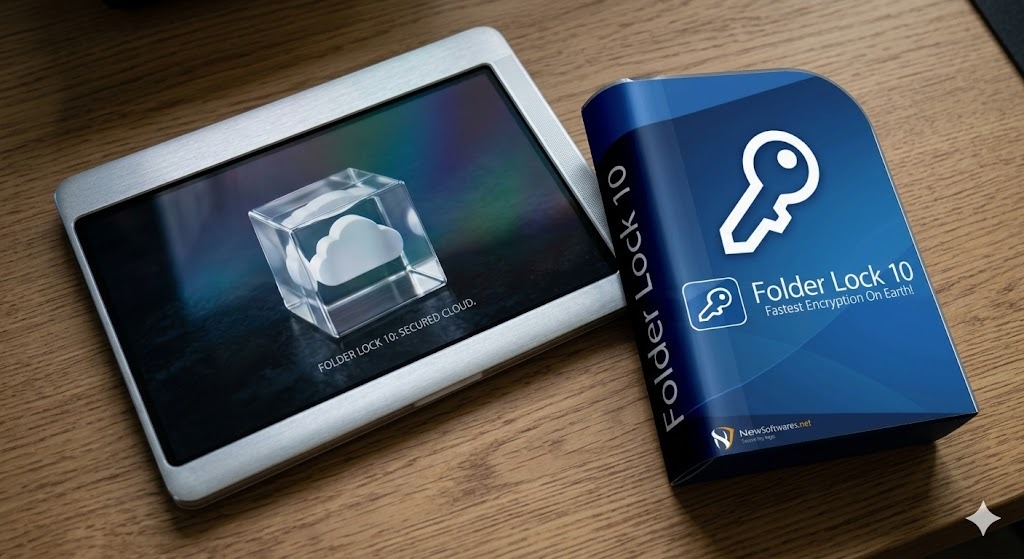
Folder Lock 10 software boxshot for Windows folder encryption
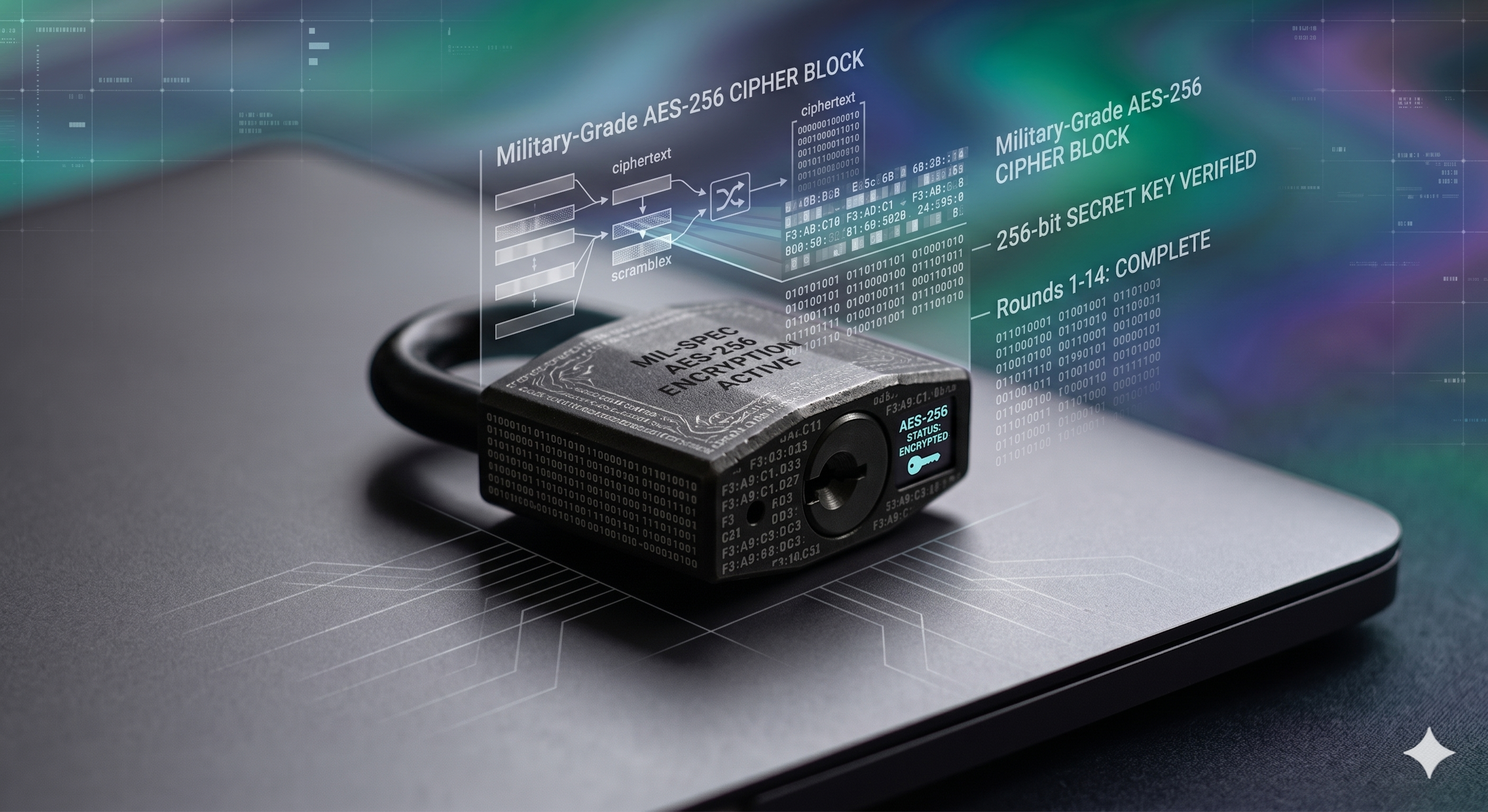
Military grade AES 256 encryption shield for protected files
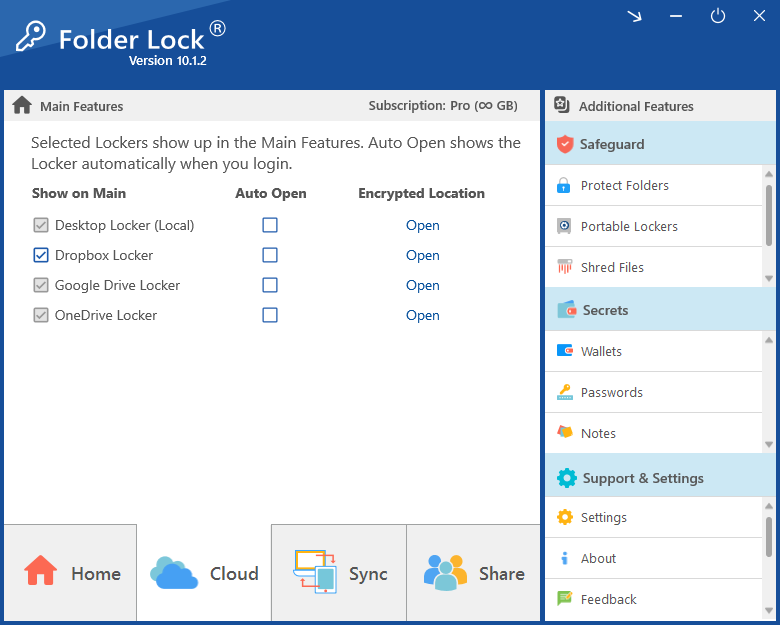
Folder Lock 10 primary screen showing secure locker dashboard

Local Encryption with Cloud and Cross-Device Access

Protection becomes more useful when it fits the way files actually move. The features already described on this page combine local encryption with cloud storage and linked devices, allowing sensitive material to remain protected while still being available where you need it.

  • On-the-Fly AES-256: The existing software description states that files are decrypted into system memory while in use rather than relying on ordinary unprotected copies.
  • Cross-Device Synchronization: Secure vaults can be connected across Windows, macOS, iOS, and Android workflows.
  • Flexible Cloud Integration: Files can be encrypted locally before synchronization with Dropbox, Google Drive, or OneDrive.
  • Tiered Pricing: The page describes a 1GB free tier and a premium option for larger capacity and multi-device synchronization.
Cross device synchronization screen for encrypted vault access
Secured cloud ecosystem for encrypted file backup workflows
Digital security shield protecting sensitive business documents

How Encrypted Virtual Volumes Fit Into the Picture

The existing VeraCrypt guidance uses a volume-based workflow rather than a simple locked-folder interface. After creating and formatting an encrypted container, you choose an empty drive letter and mount that container when you need access. The files inside then behave much like files on another drive until you dismount the volume again.

This approach is well suited to users who are comfortable managing encrypted containers and do not mind performing a few extra steps each time they open protected data. The tradeoff is convenience: compared with commercial folder encryption software, there is more manual setup and more emphasis on mounting and dismounting the secured volume.

Create the encrypted container.
Decide how much space the secure volume needs and create the container that will hold the protected files.
Set a robust password and format the volume.
The password is central to the security of the container, so the page emphasizes using a strong one rather than relying on an easy-to-guess phrase.
Mount only when you need access.
Open VeraCrypt, select the container, choose an unused drive letter, and mount the volume. When work is finished, dismount it again.
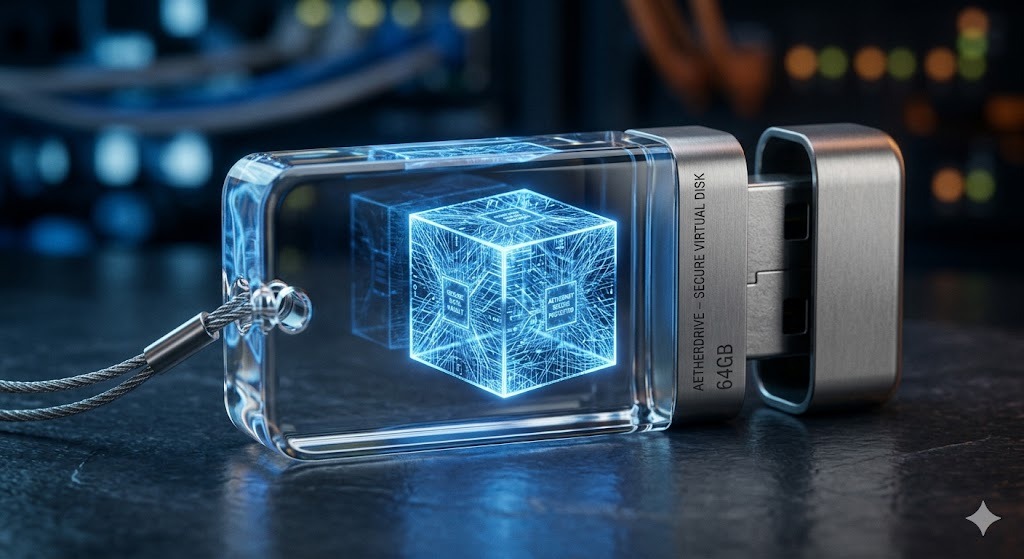
Secure virtual drive concept for protected file containers
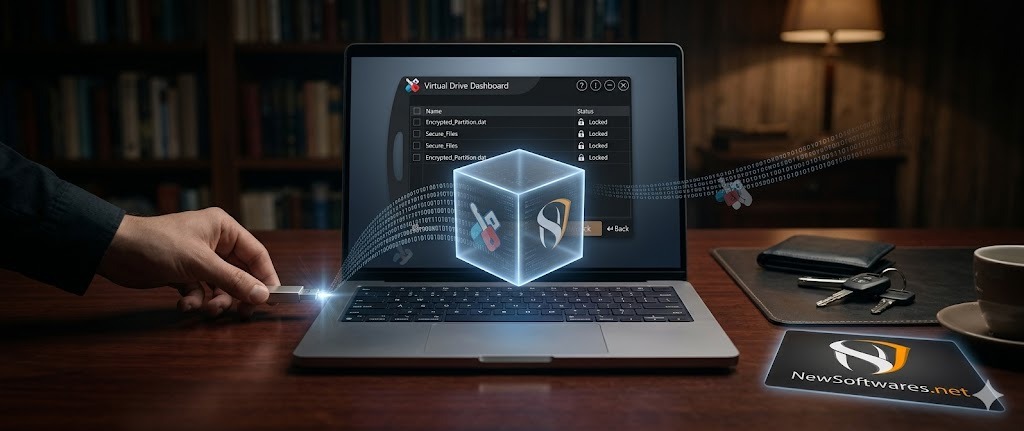
Virtual drive function illustration for encrypted locker access

Beyond Basic Passwords: Advanced Protection Features

A password prompt is only one layer of a complete folder-security workflow. The current page highlights several additional capabilities intended for situations where ordinary hiding or basic permissions are not enough.

Disk encryption software comparison visual for Windows security
Folder Lock locker controls screen for advanced protection controls

1. Safe Mode Resilience

Basic folder-hiding utilities can lose their effect when Windows starts in a diagnostic mode, making a supposedly hidden directory visible again. The existing page contrasts that behavior with security software that uses deeper operating-system filtering. For users whose main concern is unauthorized discovery of sensitive folders, this distinction matters because “hidden” and “encrypted” are not interchangeable.

In practical terms, the page recommends evaluating whether protection survives alternate boot modes instead of assuming that a folder is secure simply because it is absent from File Explorer during a normal session.

2. Portable Secure Containers for USB and Email

There are times when protected information must leave the original PC. The page describes portable locker functionality that packages encrypted data so it can be carried on a flash drive, stored on removable media, or transferred to another machine.

The value of this approach is portability. Instead of copying an ordinary folder and hoping the destination computer is trusted, the protected container remains the security boundary. Access still depends on the correct credentials.

Portable locker safeguard screen for USB and email file transfer
USB Secure password dialog for protected flash drive access

3. Stealth Operations and Hack Monitoring

The current guidance also covers users who do not want the security application itself to be obvious. Stealth-oriented functions can remove ordinary shortcuts or program visibility and rely on a secret keyboard shortcut for access. The same section describes monitoring of incorrect password attempts and automatic defensive actions when repeated access attempts occur.

These capabilities do not replace encryption. Rather, they add another layer by reducing how much information an unauthorized user can learn about the protection setup and by responding to repeated password failures.

Stealth mode operation concept for hidden security software controls
Locked file cabinet representing granular document access control

4. Granular Write and Delete Protection

Full encryption is not always the goal. On a shared workstation, a family PC, or a system where files must remain visible, access-control software can provide more targeted restrictions. The existing example uses read-only protection when people should be able to view a document but not edit it, and delete-proof protection when important data should not be removed accidentally.

This is a different security model from encryption. The files can remain visible and usable, while specific actions are restricted. Choosing between the two depends on whether confidentiality or change prevention is the main objective.

A Practical Windows Folder-Security Workflow

Using the methods already covered on this page, a sensible workflow starts with the threat you are trying to address rather than with the software name. That keeps the protection proportional to the risk and avoids adding unnecessary complexity.

Decide whether you need confidentiality or control.
If unauthorized users must not read the files, encryption is the relevant approach. If trusted users only need to be prevented from editing or deleting files, access control may be enough.
Choose the protection format.
A commercial locker is the convenience-focused choice described here, while VeraCrypt is the container-based alternative for users who prefer a more manual encrypted-volume workflow.
Protect the password as carefully as the folder.
The FAQ material on this page repeatedly points to human weaknesses—especially weak or exposed passwords—as a practical route around otherwise strong encryption.
Plan for cloud or mobile access before you move the files.
If you intend to use Dropbox, Google Drive, OneDrive, iOS, or Android, use a workflow designed to keep the protected data synchronized rather than copying unencrypted versions between devices.
Test recovery and access before relying on the setup.
Make sure you can open the protected folder, mount the volume, or use the mobile workflow successfully before deleting any original working copy that you still need.
Comparing the Protection Approaches

The comparison below summarizes the distinctions already made elsewhere on the page. It is intended to help match the method to the use case rather than declare one approach universally best.

ApproachProtection modelWindows useComplexityBest fit described on this page
Dedicated folder-encryption softwareAES-256 encrypted lockers plus convenience/security featuresYesModerateUsers who want encrypted folders, cloud workflows, portable lockers, and cross-device access in one interface.
VeraCryptAES, Serpent, Twofish encrypted volumesYesHardTechnical users who are comfortable creating, mounting, and dismounting encrypted containers.
Access Control ToolsPermission-based rather than encryptionYesStraightforwardShared PCs where files can remain visible but should be protected from edits or deletion.

Frequently Asked Questions

Can I lock a folder in Windows 10?

Yes. The existing guidance notes that Windows 10 does not provide a simple native right-click password lock for ordinary folders, so dedicated software can be used to create protected lockers that require a master password.

Can law enforcement decrypt AES-256 encrypted data?

The current page states that AES-256 itself cannot be feasibly brute-forced with current computing technology when the key is not known. It also emphasizes that real-world access can still come from human weaknesses, such as an easy-to-guess password or a password that has been exposed or written down.

What happens if someone boots my computer in Safe Mode?

That depends on the protection method. Basic folder-hiding tools can be exposed in Safe Mode. The page describes more robust third-party tools as using deeper filtering so protected folders continue to be hidden or inaccessible during diagnostic boot modes.

Can I access encrypted Windows folders on my smartphone?

Yes, when the software and workflow support cross-platform access. The page describes companion apps for iOS and Android together with encrypted vaults stored in synchronized cloud folders such as Google Drive or Dropbox.